
This guide provides information on the contents included when unboxing your Accordion A2, instructions on how to initiate your device, and how to get started with its graphical interface, Accordion Pilot Web UI, from a web browser.
Web resources
|
Title |
Comment |
|---|---|
|
The graphical interface, built into the Accordion from firmware 6.0. Open |
|
|
The python package for Accordion |
|
|
Description of the Web API |
|
|
For .NET users out there |
|
|
Command-line tool for working with Accordion |
|
Accordion Pilot (discontinued) |
The installed Windows application. It is discontinued and will not be updated anymore; use Accordion Pilot Web UI instead. |
|
Youtube video of how to get started |
You will need a network cable to connect your Accordion, and a PC, tablet or phone with a web browser. Both need to be connected to the same network.
Unboxing your Accordion
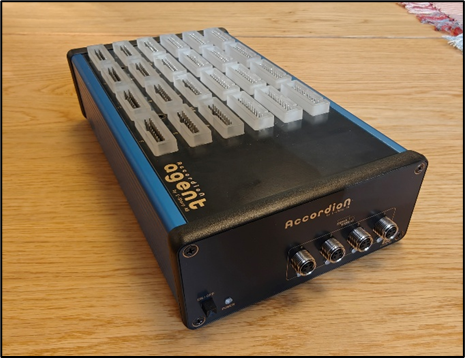
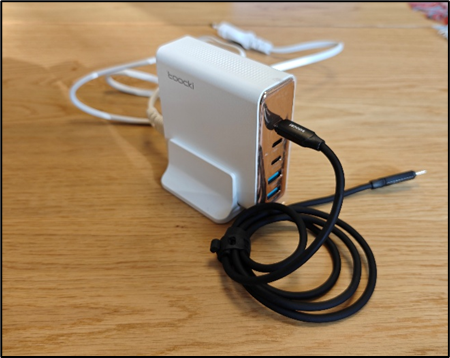
Inside the box, you will find an Accordion device and a USB power supply. The Accordion device may have various configurations and its appearance can differ on the front, back, and top sides.
Connectors and buttons
Front side connectors
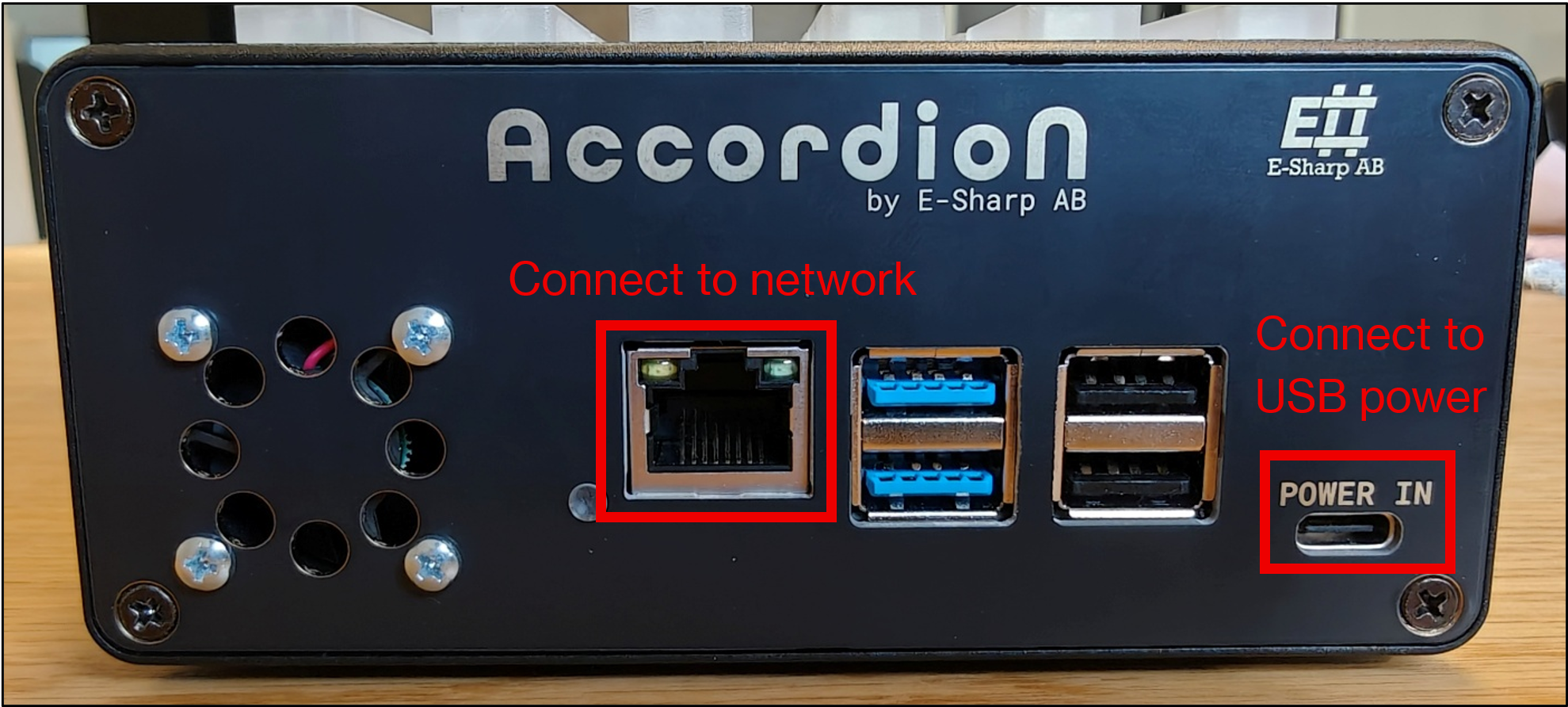
Located on the front panel of your Accordion are standard connectors that are crucial for its configuration and setup. These include the network connection port, a USB-C power port, and four USB-A ports for connecting external devices.
Back side connectors and power on
Located on the device's opposite short end, all models are equipped with a power button. Additionally, M.2 modules and expansion interfaces, are positioned here if they are part of the device's specifications.
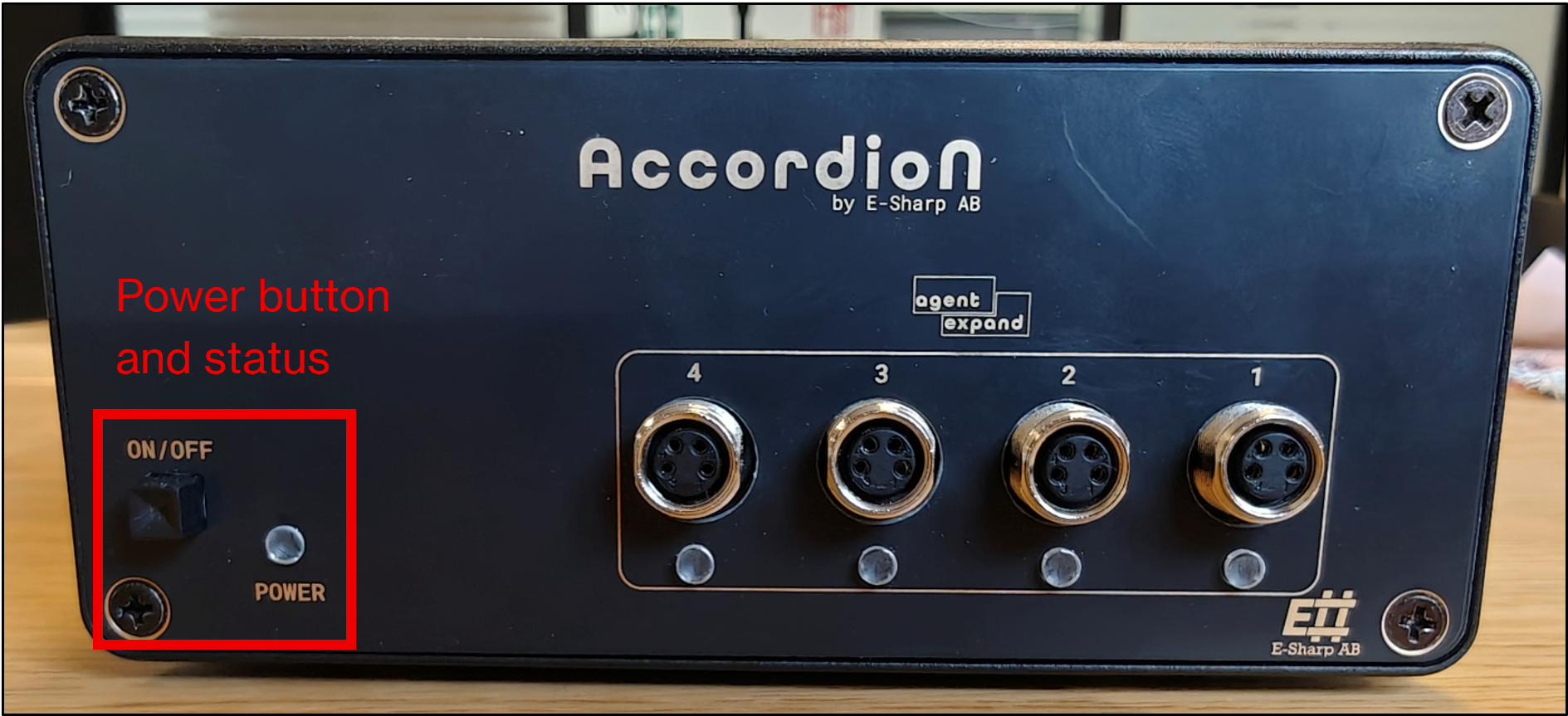
Top connectors
The SO-DIMM module connectors are positioned on the top of the device. Their specific design and appearance vary according to the device's technical specifications.
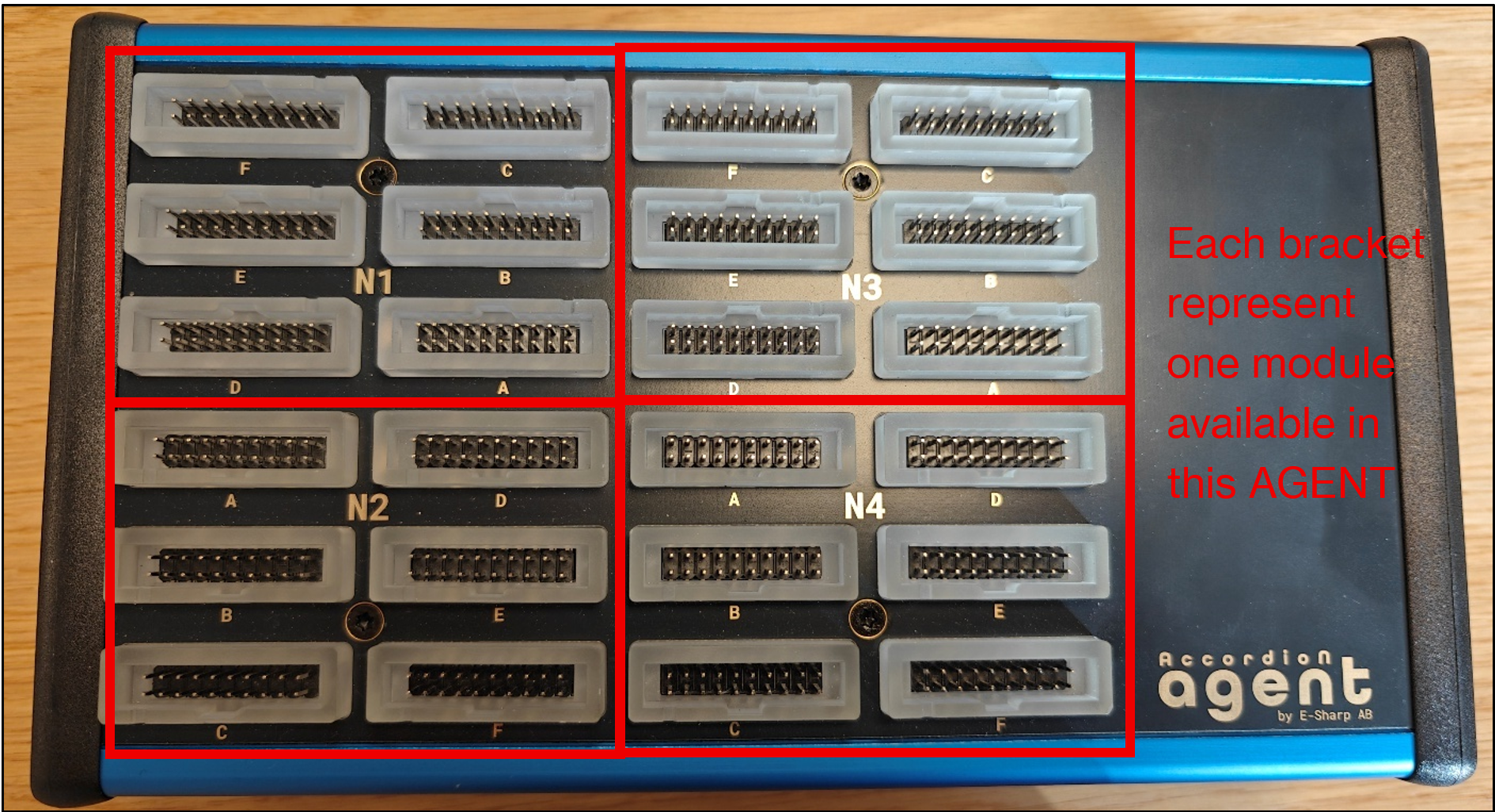
Startup
Operate the device by following these steps:
-
Connect the power supply to an electrical outlet.
-
Connect the Accordion to the power supply using the USB-C cable.
-
Connect the Accordion to a network with a network cable.
-
Ensure your PC is connected to the same network using either a cable or a wireless connection.
-
Press the on power button on your Accordion .
Getting started with Accordion Pilot Web UI
E-Sharp has engineered software drivers for the Accordion and its functionalities, which are accessible through Application Programming Interfaces (APIs) or a Graphical User Interface (GUI). The APIs are listed under Web resources above.
The GUI, Accordion Pilot Web UI, is built into the Accordion from firmware 6.0, so there is nothing to install. Open a web browser on a computer, tablet or phone on the same network and enter the Accordion's host name, which can be found on the device, or its IP address, for example http://192.168.0.50/. The Overview page opens and shows the connection, the firmware version and the modules in the Accordion.
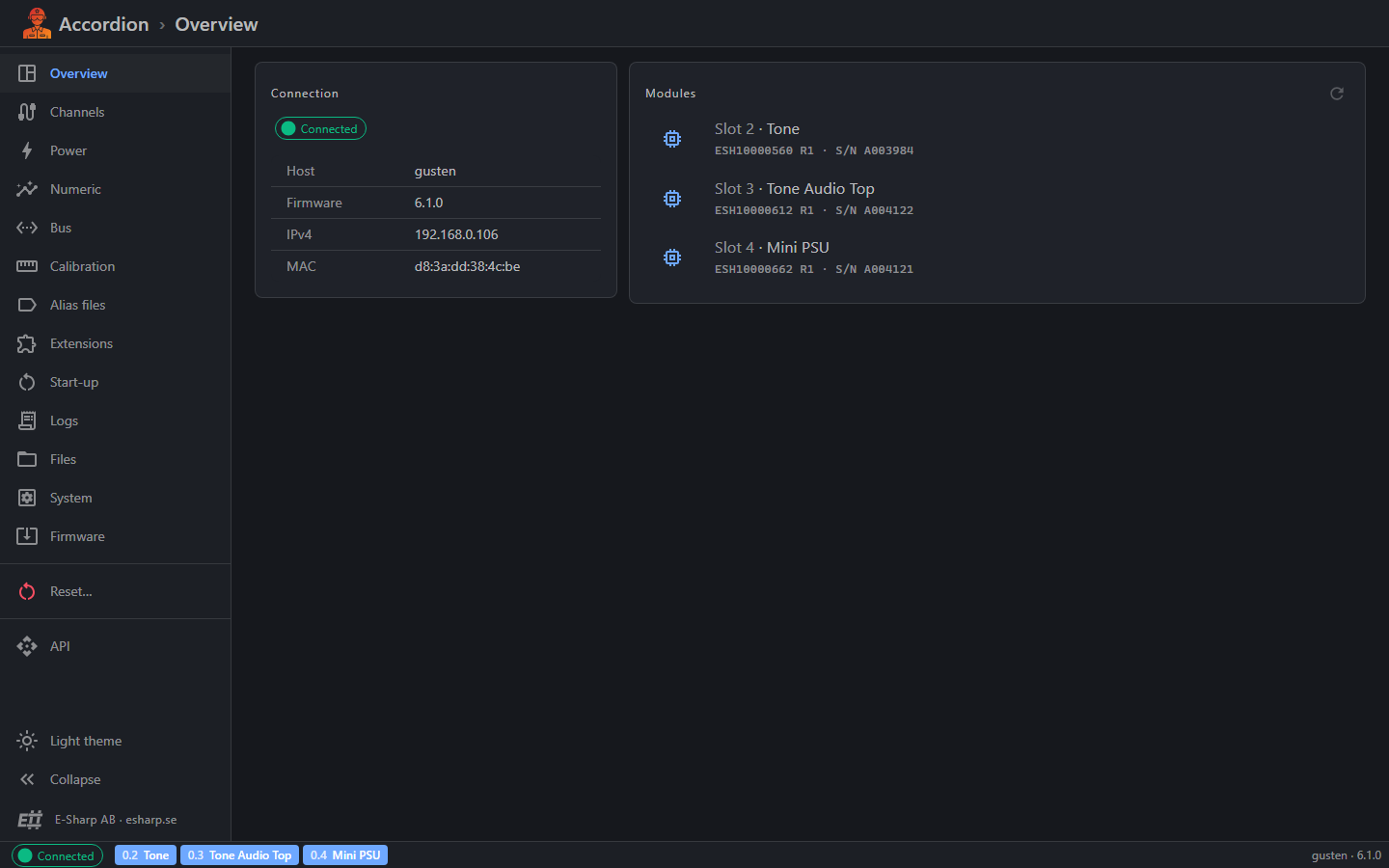
The graphical interface is designed solely to display activity and facilitate device configuration. The Accordion and its modules operate independently of it.
The menu on the left leads to every part of the Accordion: channels, power supplies, bus transactions, calibration, alias files, start-up configuration, logs, files and firmware updates. The status bar at the bottom shows the connection and the modules; click a module to show its channels.
Channels
The Channels page lists every channel of the Accordion with its live value. Each channel corresponds to a specific function or property, and the channels shown depend on the modules in your Accordion. Every column can be filtered, and the search box above the list searches all columns.
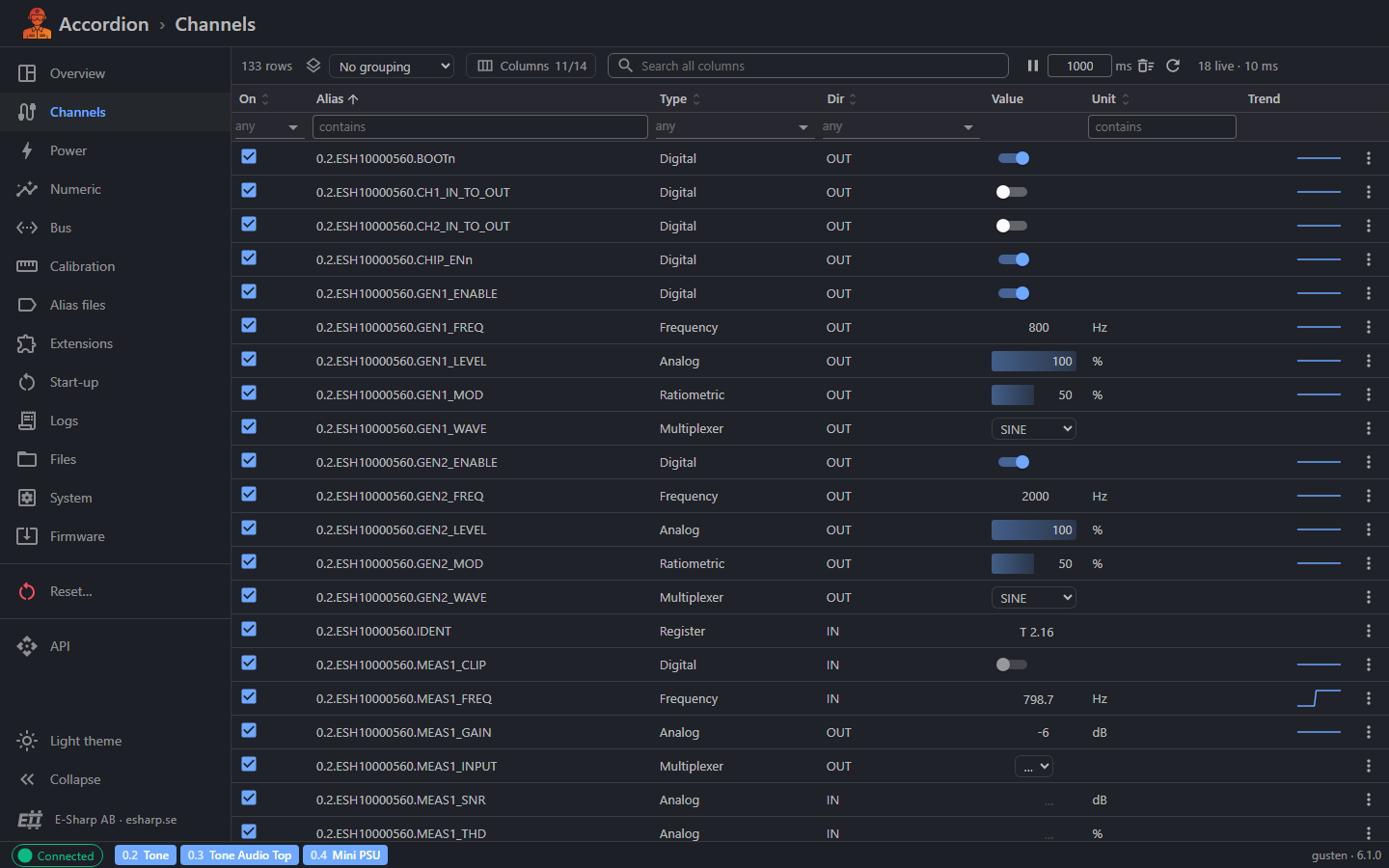
Depending on a channel's configuration, you can either set or read its data. A channel whose direction includes OUT can be set: switch a digital channel on or off with its switch, or click the value of any other channel, type the new value and press Enter. For instance, a channel with ESH10000355 in its name and the direction OUT sets the colour of an IDC connector on top of the Accordion. To make the connector green, click its value and enter Green.
Read more in Accordion Pilot Web UI.
The installed Windows application Accordion Pilot is discontinued and will not be updated anymore. Accordion Pilot Web UI does everything it did, from the browser.