

Three pages set up how the station's channels and hardware are configured. The Alias files page manages the files that name and set up your channels. The Start-up page sets what the station applies each time the hardware app starts. The Extensions page loads and unloads extension modules.
Accessing
-
In the side menu, click Alias files, Extensions or Start-up.
-
On the Alias files page, click Edit boot.config to go to the Start-up page.
If another client holds the station (for example a running test), these pages are read-only. A banner names who holds it. You can still view and download files, but you can't activate, change or save anything until it lets go.
Alias files
An alias file is a CSV file that gives your channels their aliases, groups, types, directions, units and other settings. The page lists the alias files stored on the station.
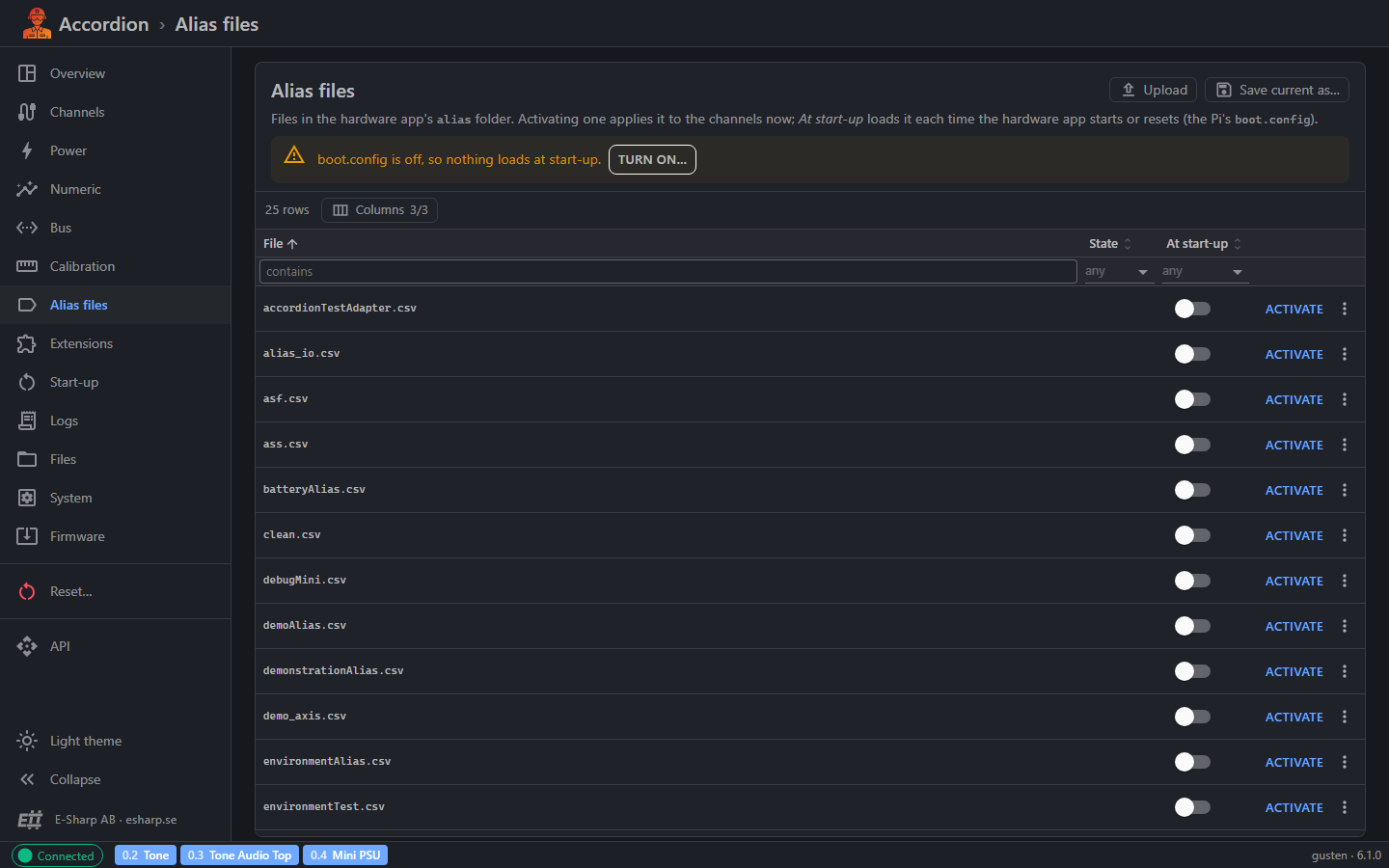
The file list
|
Column |
What it shows |
|---|---|
|
File |
The file name. |
|
State |
Active when the file has been applied since the hardware app last started or reset. When several files are active, it shows the order, for example Active (2 of 3). Hover over it to see the full order. |
|
At start-up |
A switch. On means the file is loaded each time the hardware app starts or resets. |
|
Actions |
An Activate button and a ⋮ menu. |
Right-click a row, or click ⋮, to open the file's menu. It has Activate…, Load at start-up (or Don't load at start-up), Download and Delete….
Below the title, a line shows what loads at start-up: the alias files in order, and any modules.
Upload an alias file
-
Click Upload.
-
Choose a
.csvfile on your computer. Alias files are small; files over 1 MB are refused. -
If a file with the same name is already on the station, confirm that you want to replace it.
Uploading only stores the file. It does not change your channels until you activate it.
Activate an alias file
-
Click Activate on the file's row.
-
Read the confirmation and click Activate.
Activating applies the file to the channels now. It can:
-
rename channels and change their groups, units and descriptions,
-
change channel types and directions, and enable or disable channels,
-
drive outputs that have a default value in the file to that value.
The change lasts until the hardware app restarts or resets. To keep it, switch on At start-up for that file.
If a row in the file is wrong, the good rows are still applied and you see an error message.
Activating a file can drive outputs. Make sure nothing connected to the station can be harmed before you activate a file.
Load a file at start-up
-
Switch on At start-up for the file. It is added last in the start-up order.
-
Switch it off to stop loading it at start-up.
-
To change the order of several start-up files, use the Start-up page.
Start-up loading uses the station's start-up configuration (boot.config). If boot.config is off, a banner says that nothing loads at start-up. Click Turn on… to turn it on. The confirmation lists everything boot.config will then apply, including Wi-Fi, static addresses and USB, not only the alias files. To turn it off again, click Turn boot.config off….
Export the current channel setup
-
Click Save current as….
-
Enter a file name. The suggested name is the station name and today's date.
.csvis added if you leave it out. -
Click Save.
The channels' current aliases, groups, types, directions and options are written to a new alias file on the station. To get a copy on your computer, use Download from the file's menu.
Download or delete a file
-
Download saves the file to your computer.
-
Delete… removes the file from the station. Download it first if you may want it back. If the file is set to load at start-up, the hardware app logs it as missing until you switch it off.
Alias file columns
An alias file has one row per channel and these columns:
|
Column |
What to put in it |
|---|---|
|
Alias |
The name you want to use for the channel. |
|
NetName |
The channel's net name. This identifies the channel the row applies to. |
|
GroupName |
The group the channel belongs to. |
|
Enabled |
Whether the channel is enabled. Must be filled. |
|
ChannelType |
The channel type. Must be filled. |
|
Capability |
The channel's capability. |
|
Direction |
The direction, for example IN or OUT. Must be filled. |
|
DefaultValue |
For OUT channels, the value the output is set to at start-up. |
|
Option1, Option2, Option3 |
Channel options. For analog channels, Option1 and Option2 are the channel's calibration gain and offset. |
|
Unit |
The unit of the value. |
|
Description |
A description of the channel. |
|
ChannelTypeCapability |
The channel type's capability. |
For analog channels, leave Option1 and Option2 empty to keep the unit's own calibration. A value in these columns replaces the calibration gain and offset.
Start-up
The Start-up page edits the station's start-up configuration, boot.config. It sets what the hardware app applies when it starts. The file's location and when it was last written are shown at the top, for example hw/config/boot.config.
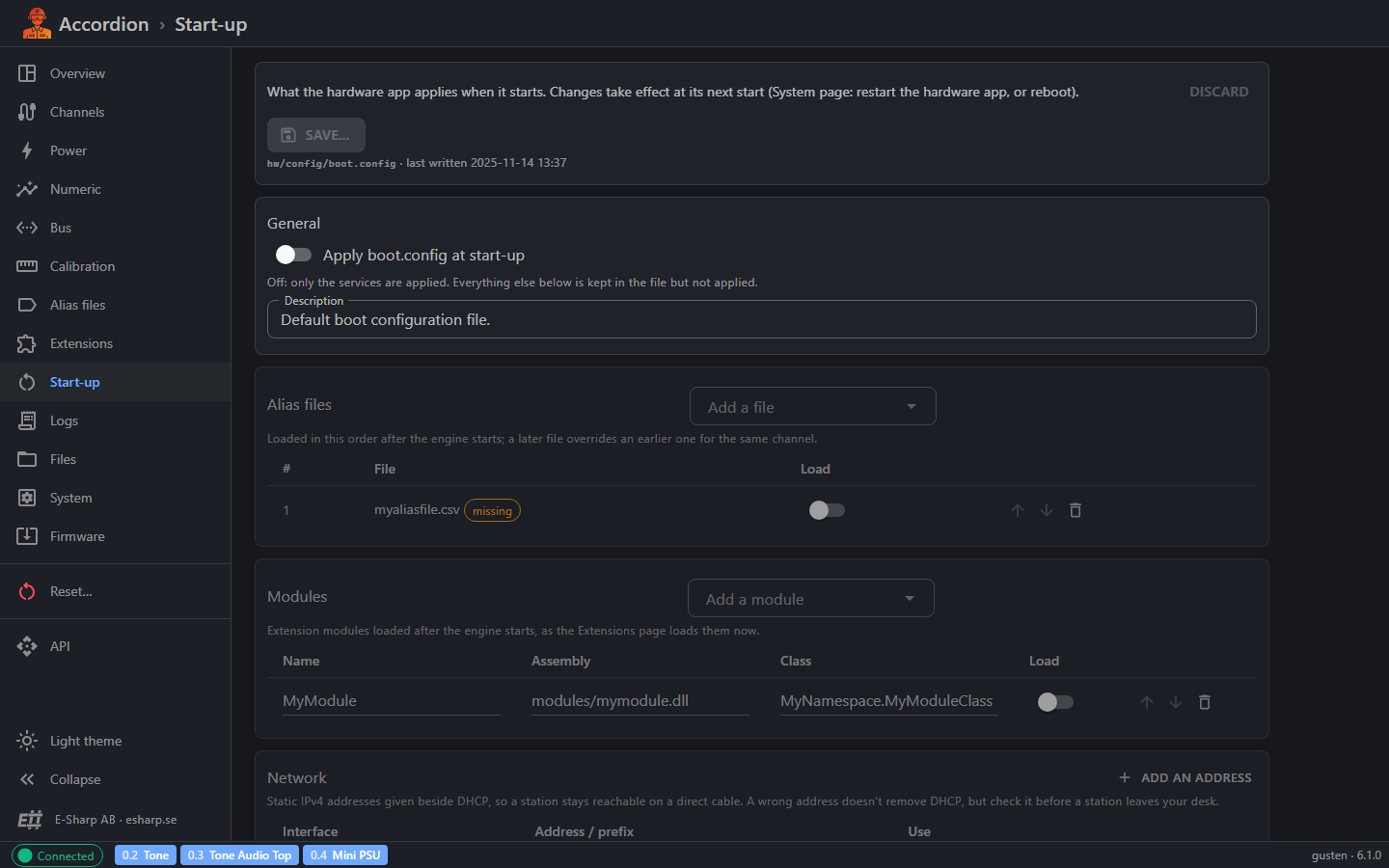
How changes are applied
-
You edit a draft. An Unsaved changes label shows when the draft differs from the saved file.
-
Click Save…. The confirmation lists what changes. Click Save.
-
Nothing changes on the station until the hardware app next starts. To apply the changes now, restart the hardware app or reboot from the System page.
-
Click Discard to throw away your edits and read the file again.
-
If you leave the page with unsaved changes, you are asked first.
Save… stays disabled while a field has an error, for example a wrong address or a missing Wi-Fi network name.
If someone else changed boot.config after you opened the page, saving is refused and a Changed elsewhere label shows. Your edits stay on screen. Note what you need, click Discard to load the new version, and make your changes again.
General
-
Apply boot.config at start-up: when on, the alias files, modules, Wi-Fi, addresses and USB setting are applied when the hardware app starts. The alias files and modules are also loaded again on every reset.
-
When off, only the services and the media device setting are used. The other settings are kept in the file but not applied. Those sections are greyed out.
-
Description: a free text description of this configuration, up to 500 characters.
Alias files
-
Use Add a file to pick an alias file stored on the station.
-
Files are loaded in the listed order. A later file overrides an earlier one for the same channel.
-
Use the arrows to move a file up or down, and the bin to remove it from the list.
-
Use the Load switch to keep a file in the list without loading it.
-
A missing label means the file is not in the alias folder. The hardware app logs it as missing.
Modules
-
Use Add a module to pick an extension module, or choose Other (fill in)… and enter its name, assembly and class yourself.
-
Modules marked Load are loaded after the hardware app starts, the same way the Extensions page loads them.
-
Use the arrows to change the order, and the bin to remove a module.
-
Each module needs a unique name. A module set to load also needs an assembly and a class.
Network
Here you add static IPv4 addresses. They are given beside DHCP, so the station stays reachable on a direct cable.
-
Click Add an address.
-
Enter the interface, for example
eth0. -
Enter the address with its prefix, for example
192.168.0.222/24. -
Make sure Use is on.
With no addresses listed, the station uses DHCP only. A wrong address does not remove DHCP, but check it before the station leaves your desk.
Wi-Fi
-
Switch on Connect to a Wi-Fi network and enter the Network name (SSID) and Password. The password must be 8 to 63 characters.
-
Wi-Fi only works on a station whose hardware has Wi-Fi enabled.
-
When the switch is off, Wi-Fi is turned off at start-up (when boot.config is applied).
-
The saved password is never shown. Leave the field empty to keep it. Tick Remove the saved password to clear it.
Devices
-
USB ports on: switch off to cut power to USB devices plugged into the station. This is applied with the rest of boot.config.
-
Look for audio, video and image devices: needed for the Audio page. This is read every time the hardware app starts, whether boot.config is applied or not. Leave it off unless the station uses such devices.
Services
-
The services are applied at every start, even when boot.config is off.
-
A service with Run on is enabled and started. One with Run off is stopped and disabled.
-
Click Add a service to add one, and enter its name and its system unit name.
-
The hardware app and the web service that runs this GUI can't be turned off or removed here, because that would lock the GUI out of the station.
Extensions
The Extensions page lists the extension modules the station knows about, from its modules.config file. An extension module adds channels for extra hardware.
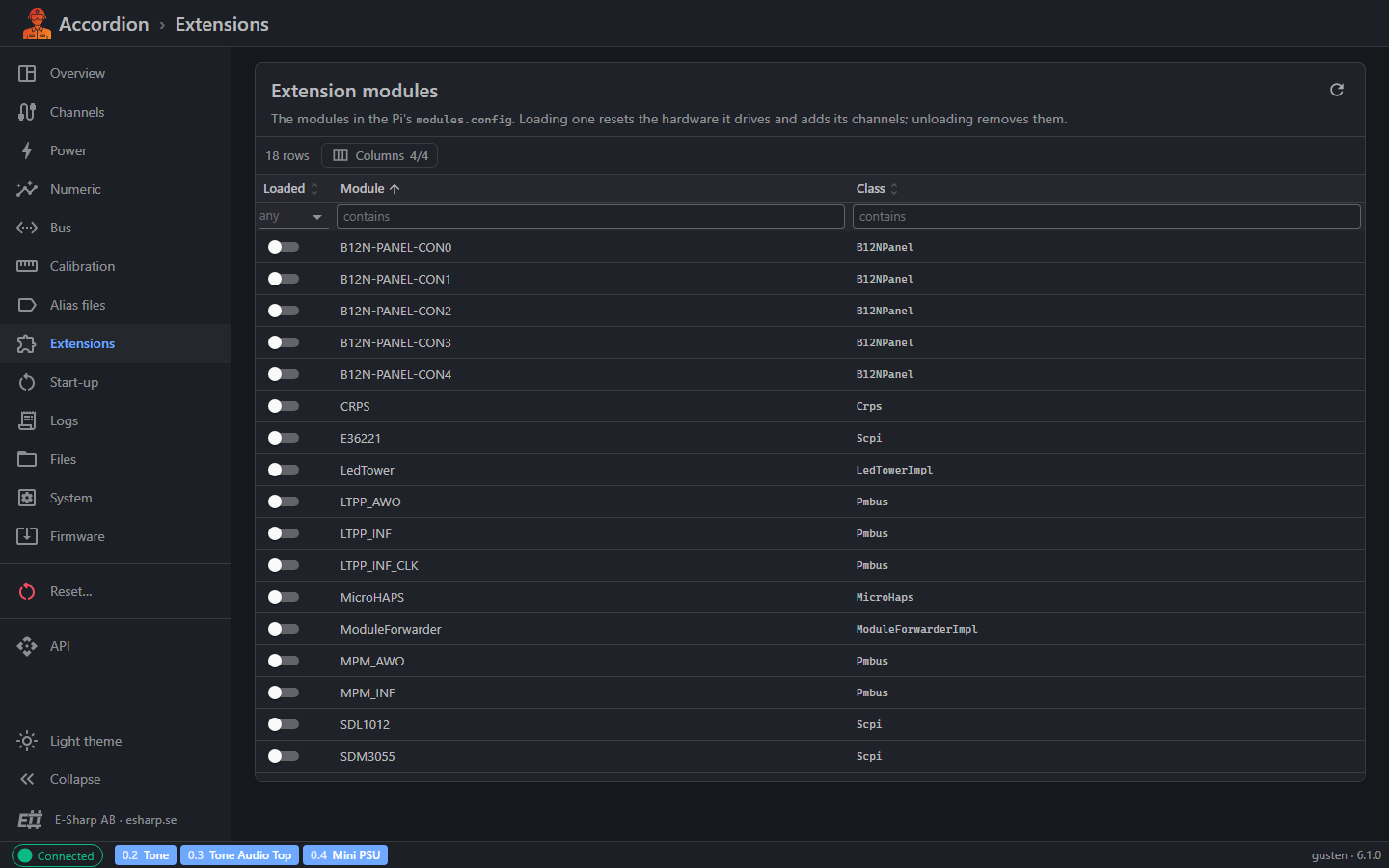
The module list
|
Column |
What it shows |
|---|---|
|
Loaded |
A switch. On means the module is loaded now. |
|
Module |
The module's name. |
|
Class |
The module's class. Hidden on a phone. |
|
Assembly |
The module's program file. Hidden on a phone. |
Click the refresh button to read the list again.
Load or unload a module
-
Switch Loaded on and confirm. Loading resets the hardware the module drives and adds its channels.
-
Switch Loaded off and confirm. Unloading removes the module's channels. Anything using them stops working.
Loading or unloading here lasts until the hardware app restarts. To load a module every time, add it on the Start-up page.
Tips
-
Use Save current as… before you activate a new alias file. Then you can go back to the old setup.
-
Activating a file is temporary. Switch on At start-up for a file you want to keep.
-
Check that boot.config is on if your start-up files don't load.
-
Leave Option1 and Option2 empty for analog channels unless you mean to replace the calibration.
-
After saving boot.config, restart the hardware app from the System page to apply it.
-
Add a static address before you connect the station directly to a computer without DHCP.