

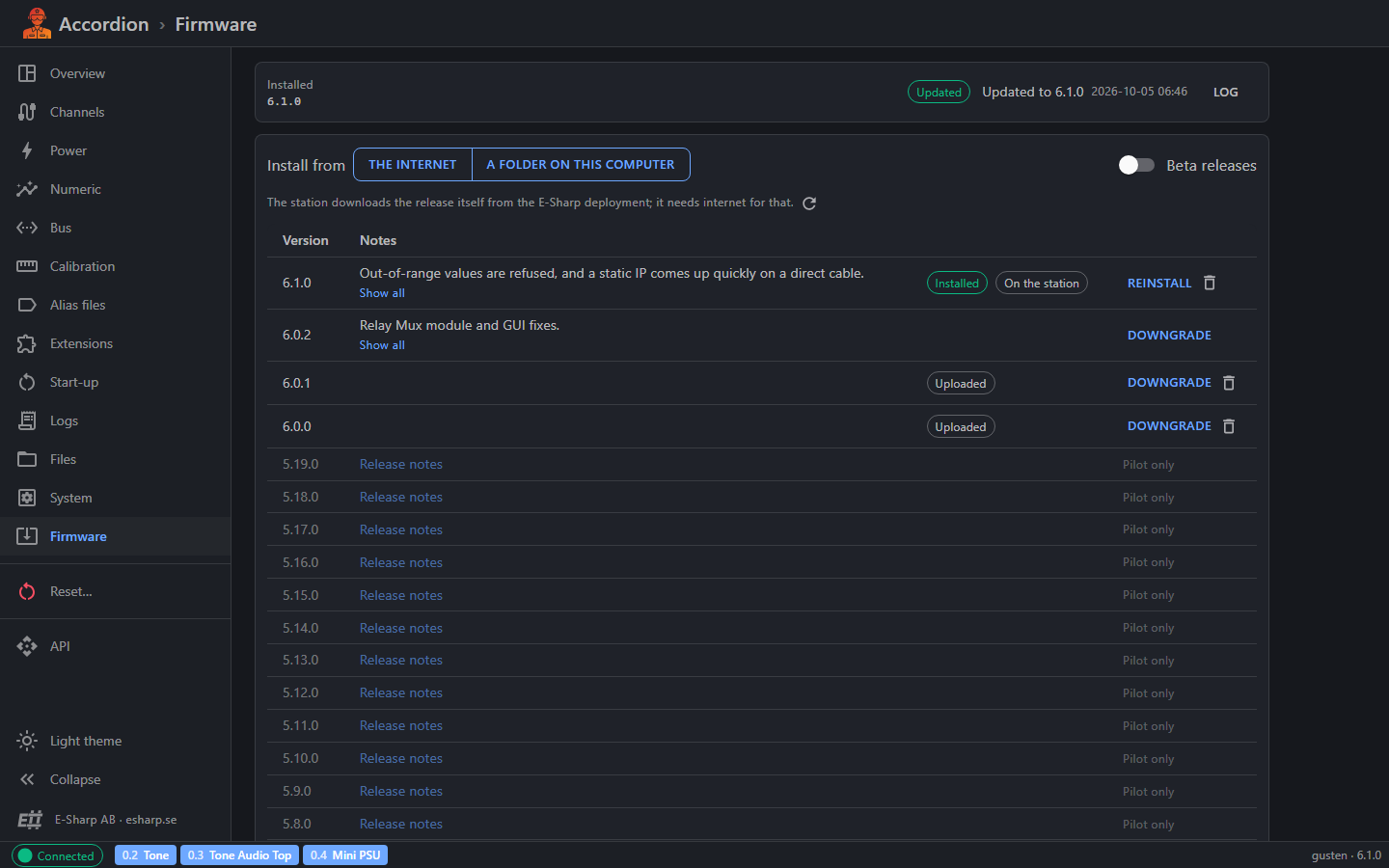
The Firmware page shows which firmware version the station runs and lets you install another release. You can install from the E-Sharp deployment over the internet, or from a folder on your computer when the station has no internet.
Only releases signed by E-Sharp can be installed. An update keeps the station's own settings, and it rolls back by itself if the station doesn't come up afterwards.
Accessing
-
In the side menu, click Firmware.
If another client holds the station (for example a running test), a banner names who holds it. You can see the releases, but you can't install or remove anything until it lets go.
Installed version
The top of the page shows the Installed version.
After an update, the result of the last update is shown beside it: Updated, Failed or Rolled back, with a message and the time. Click Log to see the full update log.
Choose where to install from
Under Install from, choose one of:
-
The internet: the station downloads the release itself from the E-Sharp deployment. The station needs internet for this.
-
A folder on this computer: for a station without internet. You choose the release files on your computer, and the browser sends the chosen package to the station.
Beta releases
Switch on Beta releases to include beta releases in the list. Beta releases are marked Beta. Leave the switch off to see only regular releases.
The release list
Each row is one release.
-
Version: the release's version number.
-
Notes: the first line of the release notes. Click Show all to read the rest, and Less to fold them up again. Some releases have a Release notes link instead, which opens in a new tab.
-
Labels that tell you more about the release.
-
The install button, or Pilot only.
Labels
|
Label |
Meaning |
|---|---|
|
Installed |
The station runs this release now. |
|
Beta |
A beta release. |
|
On the station |
The package is already on the station, so installing it needs no download. |
|
Uploaded |
The package was sent to the station earlier from a computer. It isn't in the release list from the internet. |
|
Not in the folder |
The folder's release list names this release, but its package isn't in the folder you chose. |
|
Not listed |
The package is in the folder, or is the single package you chose, but isn't in a release list. Its version is taken from the file name. |
|
Pilot only |
A release before 6.0. It has no browser GUI, so it can't be installed from this page. Use Pilot for those releases. |
The install button
The button's text depends on the release:
-
Install: a newer release than the one installed. The button is filled in for newer releases.
-
Reinstall: the release that is installed now.
-
Downgrade: an older release than the one installed.
Install from the internet
-
Under Install from, click The internet.
-
If needed, click the refresh button to read the release list again.
-
Click Install, Reinstall or Downgrade on the release you want.
-
Read the confirmation and click Install.
The station downloads the package and then installs it. A progress bar shows how much has been downloaded.
If the station can't reach the internet, a warning says so. Packages already on the station are still listed. Otherwise, install from a folder on your computer.
Remove a package from the station
A bin button appears next to packages that were uploaded to the station, or downloaded to it from an internet address. Click it and confirm to remove the package. An uploaded package must be sent again to install it. A downloaded one is downloaded again when you install it.
The station's release source (advanced)
Under The station's release source (advanced), you can point the station at another source of releases:
-
an
https://address that serves areleases.jsonfile and the packages, or -
a folder on the station itself, such as a USB stick plugged into the station, for example
/media/usb/accfirmware.
Enter the source and click Use. Click Back to the default to return to the E-Sharp deployment.
Install from a folder on this computer
Use this when the station has no internet.
-
Under Install from, click A folder on this computer.
-
Click Choose folder… and choose the folder that holds
releases.jsonand the release packages (rel-x.y.z.zip). -
The page lists the releases it found. A short note shows how many packages are in the folder.
-
Click Install, Reinstall or Downgrade on the release you want, and confirm.
The browser may ask whether to "upload" the folder. It only reads the list on your computer. Nothing leaves your computer until you install a release, and then only that one package is sent.
Install a single package
-
Click Choose a package….
-
Choose one release package (
.zip) on your computer. It can be up to 256 MB. -
Click the install button on its row and confirm.
The package is sent to the station first, then installed. A progress bar shows Sending … to the station while it is sent.
What happens during an update
Before the update starts, the confirmation tells you what will happen:
-
The package is downloaded or sent to the station first, unless it is already there.
-
The hardware app and the web service that runs this GUI stop. Outputs are left as the hardware app leaves them when it stops. Every client (test sequences, Pilot, other browsers) loses the station for a minute or two.
-
The release's files replace the program files. Alias files, boot.config, logs and other station settings and data are kept.
-
If the services don't stay up afterwards, the previous version is put back.
Progress
The page shows the update's progress: Downloading, Preparing and Installing, with a message. While preparing, the station checks the package and its signature. A package that isn't signed by E-Sharp is refused and nothing is installed.
While the station restarts, the page says it is waiting for the station to come back. Keep the page open. It keeps checking and shows the result by itself.
Don't power off the station during an update. Wait until the page shows the result.
Result
-
Updated: the new version is installed. Reload the page in your browser to use the new version's GUI.
-
Rolled back: the new version didn't stay up, so the previous version was put back. The station runs as before.
-
Failed: the update didn't complete. The message says why.
Click Log next to the result to read the update log. It shows each step of the update.
Tips
-
Stop any running test before you update. Every client loses the station during the update.
-
Read the release notes before you install. Click Show all to see them in full.
-
Reload the page after a successful update so you get the new GUI.
-
For a station without internet, keep a folder with
releases.jsonand the packages on your computer. -
If an update rolls back, open the Log and the Logs page to find out why.
-
Releases marked Pilot only can still be installed with Pilot.